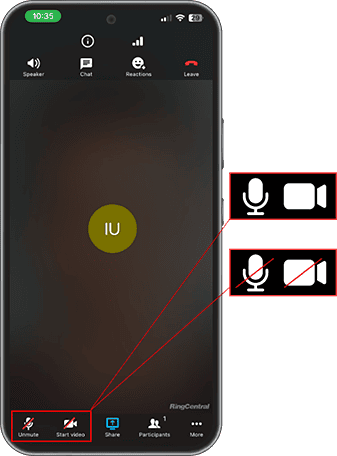
Joining a Telehealth Visit
Step 1:
Click the link we sent you to join the video call.
Step 2:
Enter your name and click “Join meeting now”
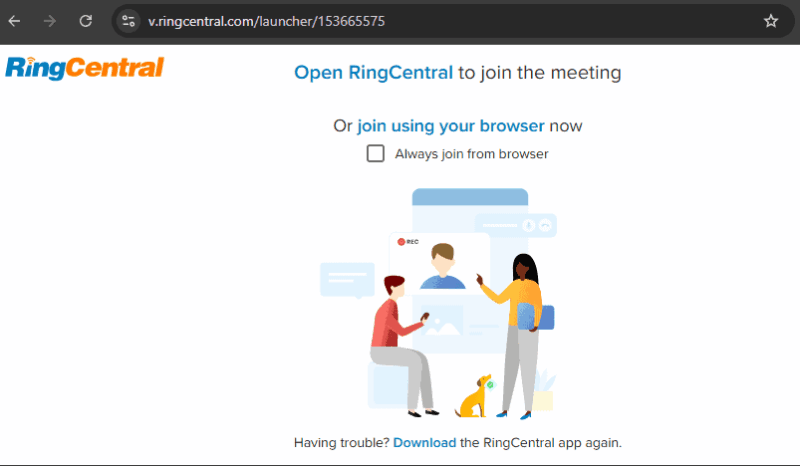
Step 3:
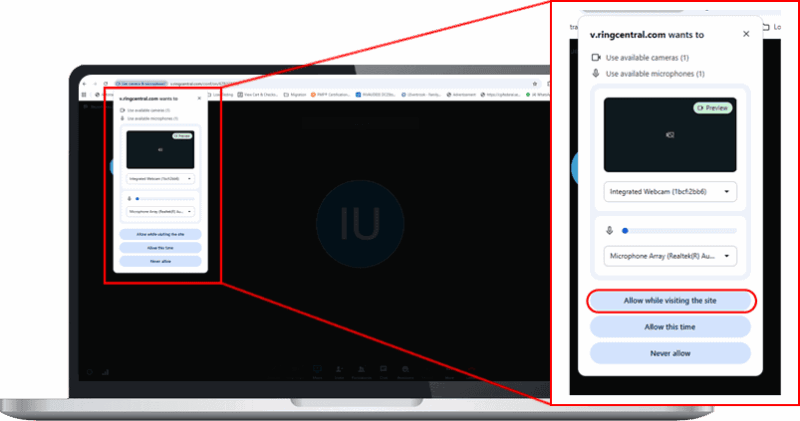
To allow the doctor to see and hear you, you must allow access to your microphone and camera. When a pop-up appears in the top-left corner, click “Allow while visiting this site”
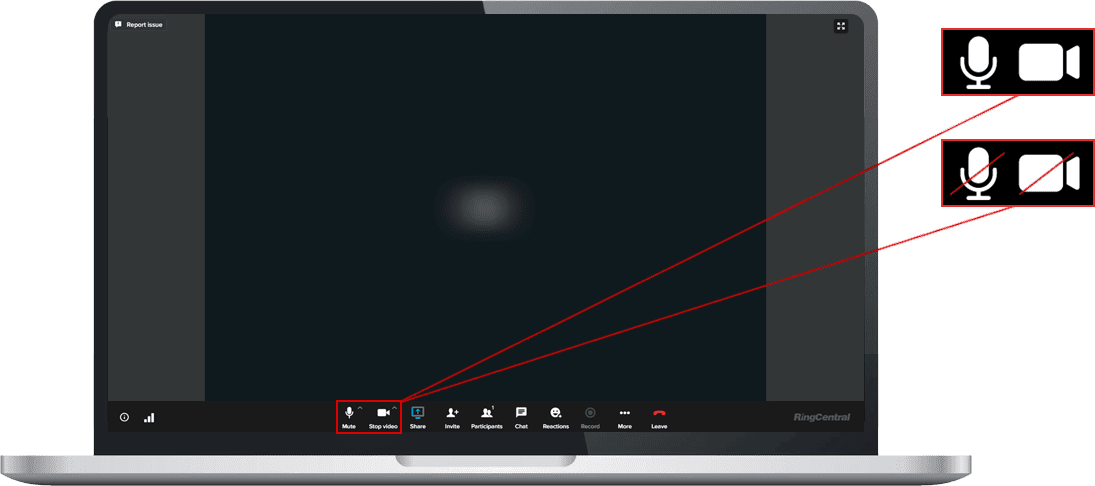
Once you are on this screen, the video call will start. If the microphone and camera on the bottom have a red slash through them, then you must click on the icons to turn them on.
Step 1:
Click the link we sent you to join the video call.
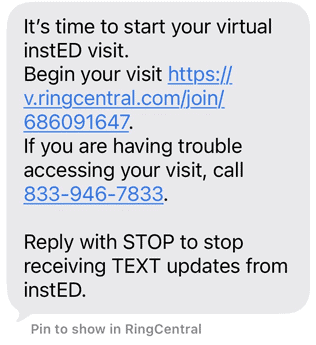
Step 2:
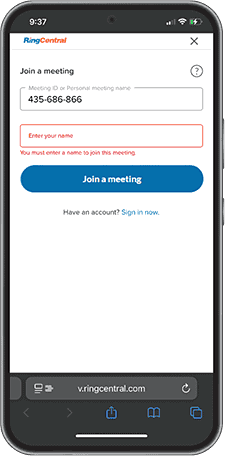
The meeting ID will be there automatically. Enter your name and click “Join a meeting”
Step 3:
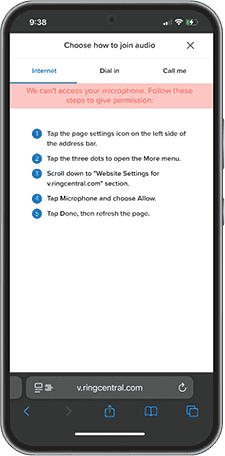
You will have to give the website access to your camera and microphone so the doctor can see and hear you. There will be instructions on your screen, like the ones below.
Step 4:
Click the lines on the left side of the address bar with the website name, then select “settings” and change “deny” to “allow” next to Camera and Microphone.
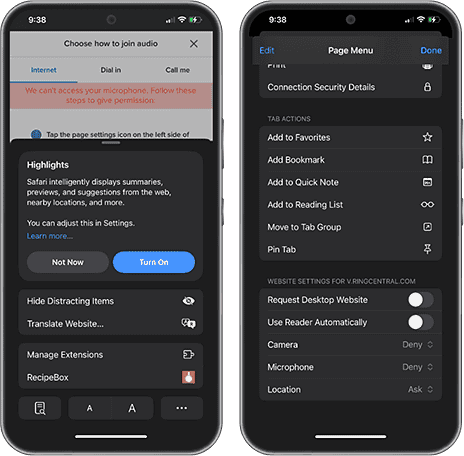
Once you are on this screen, the video call will start. If the microphone and camera on the bottom have a red slash through them (like in this picture), then you must click on the icons to turn them on.